



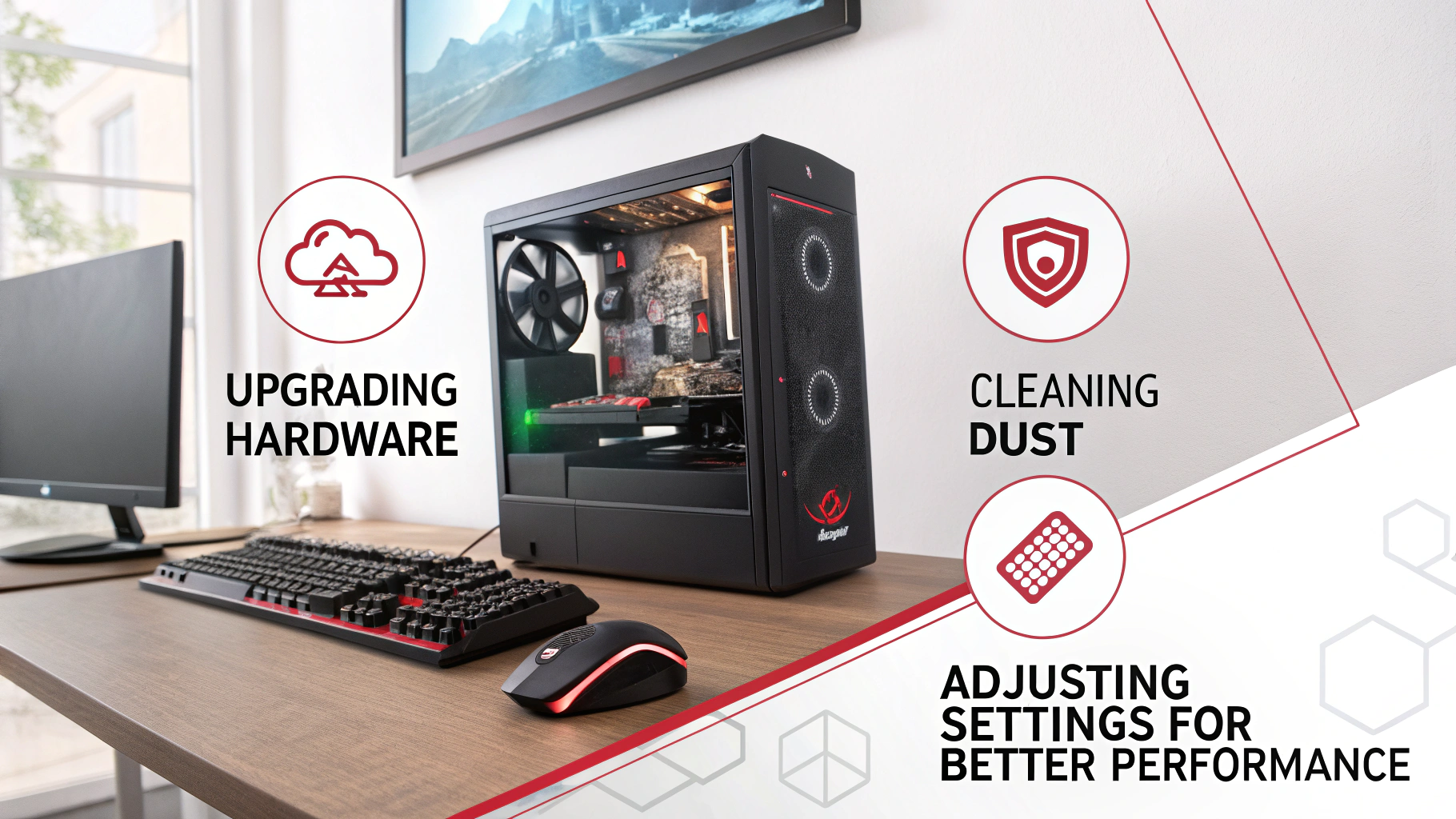
In 2025, gaming has reached a level of realism that is breathtaking, but it also demands a lot from your computer. You don’t always need to buy the newest $2,000 graphics card to have a smooth experience. Often, your PC is like a powerful car with the parking brake accidentally left on.
Optimizing your PC is about releasing that brake. By following this guide, you can increase your FPS (Frames Per Second), reduce Input Lag, and make your games feel buttery smooth.1
1. The Quick Wins (Software Tweaks)
Before you touch any hardware, you can get a 10–15% boost just by changing a few settings in Windows 11 (or Windows 10).2
A. Turn on “Game Mode”
Windows has a built-in feature specifically for us.3 When Game Mode is on, Windows tells background tasks (like Windows Update or random apps) to stay quiet so your CPU can focus entirely on your game.4+1
- How: Go to Settings > Gaming > Game Mode and toggle it On.5
B. Hardware-Accelerated GPU Scheduling
This is a fancy term that basically means “let the graphics card manage its own memory instead of waiting for the CPU.” In 2025, this is a must-have for modern games.
- How: Go to Settings > System > Display > Graphics > Change default graphics settings.6 Turn on Hardware-accelerated GPU scheduling. You will need to restart your PC.7+1
C. Change Your Power Plan
By default, PCs try to save electricity.8 For gaming, we want “High Performance.”
- How: Search for “Choose a power plan” in your Start menu. Select High Performance or Ultimate Performance. (Note: If you are on a laptop, only do this while plugged into a charger).9
2. Update Your Graphics Drivers
This is the single most important rule of PC gaming. Companies like NVIDIA, AMD, and Intel release new software almost every month.10 These “drivers” contain specific instructions that tell your card how to run new games more efficiently.
- For NVIDIA: Use GeForce Experience or the new NVIDIA App.11
- For AMD: Use Adrenalin Edition software.12
- For Intel: Use the Intel Driver & Support Assistant.
3. Manage Your “Background Life”
Your PC has a limited amount of RAM (short-term memory). If you have 15 Chrome tabs, Discord, Spotify, and Steam open while you try to play Cyberpunk 2077, your game is going to stutter.
- The Task Manager Trick: Press
Ctrl + Shift + Esc. Look at the “Processes” tab.13 If something is using 20% of your CPU that isn’t your game, right-click it and select End Task. - Startup Apps: Go to the “Startup” tab in Task Manager.14 Disable everything you don’t need the second you turn on your PC. Your computer will boot faster, and you’ll have more RAM for gaming.
4. In-Game Settings: The “Sweet Spot”
Don’t just hit the “Ultra” preset and hope for the best. To optimize, you need to know which settings eat the most performance for the least visual gain.15
| Setting | Impact | Recommendation |
| Shadow Quality | High | Set to Medium. It looks almost the same but saves a lot of FPS. |
| Motion Blur | Low | Set to Off. It makes the game look “smudgy” and can cause motion sickness. |
| Anti-Aliasing | Medium | Use DLSS (NVIDIA) or FSR (AMD) if available. This uses AI to give you massive FPS boosts. |
| V-Sync | Varies | Turn Off if you want the lowest input lag. Turn On only if you see “tearing” on your screen. |
5. Hardware Health: Cleaning and Cooling
Heat is the enemy of performance. When your PC gets too hot, it intentionally slows itself down to prevent melting (this is called “Thermal Throttling”).16
- Dust Your PC: If you haven’t opened your PC case in six months, it’s probably full of dust. Use a can of compressed air to clean out the fans. A cool PC is a fast PC.
- Check Your Temperatures: Download a free tool like HWMonitor.17 If your CPU or GPU is hitting 95°C (203°F) while gaming, you have a cooling problem.
6. Advanced Move: The BIOS (XMP/EXPO)18
Many people buy fast RAM but don’t realize it’s running at “slow” factory speeds. To fix this, you have to enter the BIOS (the menu that appears when you first turn on your PC).19
- Look for a setting called XMP (for Intel) or DOCP/EXPO (for AMD).20
- Turning this on allows your RAM to run at the high speed you actually paid for.21 This can result in a 5–10% jump in minimum frame rates, which stops those annoying “micro-stutters.”
7. The 2025 Must-Have: The SSD
If you are still playing games off an old-fashioned spinning Hard Drive (HDD), your games will stutter as they try to load textures.
- In 2025, an NVMe SSD is no longer a luxury; it is a requirement.22 If you can only afford one upgrade, make it an SSD. Your load times will go from minutes to seconds.
Summary Checklist
- Software: Enable Game Mode and High Performance power plan.23
- Drivers: Update your GPU drivers today.24
- RAM: Close background apps and enable XMP/EXPO in BIOS.25
- Visuals: Use DLSS/FSR in-game and lower Shadows.26
- Physical: Clean the dust out of your fans.27
Final Thoughts
Optimizing a PC is a journey, not a destination. As games get more demanding, you might need to tweak these settings again. But if you keep your drivers updated, your background apps closed, and your hardware cool, you will be ahead of 90% of other players.
Would you like me to give you specific NVIDIA or AMD control panel settings to further reduce your input lag?
